![911C logo 2-4.png]](https://knowledge.911cellular.com/hs-fs/hubfs/911C%20logo%202-4.png?height=20&name=911C%20logo%202-4.png)
What is a BLE beacon?
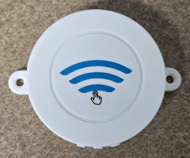
A BLE beacon is a small wireless device that periodically broadcasts a Bluetooth signal to nearby devices. BLE stands for Bluetooth Low Energy, a version of Bluetooth designed to use very little power, allowing beacon batteries to last for years.
Installing batteries and enabling your beacon
1. Remove the beacon from its packaging. Twist the bottom cover of the beacon counter-clockwise and pull to remove the cover.
2. Install two AAA batteries in the correct orientation, and replace the bottom cover.
3. Press the 911Cellular logo once to ensure the beacon is powered on. The device will flash green one time to indicate it is powered.
4. If the beacon is not powered, press and hold the 911Cellular logo until it flashes green rapidly three (3) times. Then, try Step 3 once again.
Manual entry method to add BLE beacons
1. BLE beacons are identified using a unique value called a UUID. On the back of your beacon, you will find a label containing a portion of this UUID. (for example, "000000A11418")
2. The UUID our system uses is 6fd23a9c5478b71e0c3f followed by the characters labeled on the back of your beacon. Do not include any spaces or special characters (for the example above, the full UUID is 6fd23a9c5478b71e0c3f000000a11418. UUIDs are not case sensitive).
3. Navigate to Manage Devices > Manage Bluetooth Beacons and click "Add Beacon"
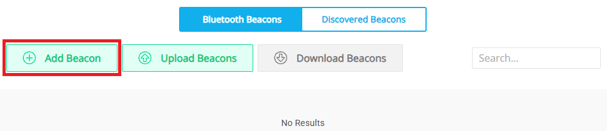
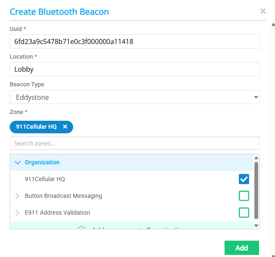
4. In the pop-up window:
-
UUID: paste in the full UUID of your beacon in this field
- Location: Enter a textual description where the beacon will be installed (examples: Room122, Cafeteria, Front Lobby, etc)
- Beacon Type: Ensure "Eddystone" is selected
- Zone: use the selector to checkmark the zone where the beacon will be installed
- Add: click the green "Add" button to add the beacon to the portal
5. With an active BadgeR+ wearable, press the white battery button one time to perform a "check-in." Then, refresh your web browser. The new beacon should display updates under the "Last Modified" and "Battery (v)" columns. (Under certain circumstances, you may need to perform two "check-ins" if these columns do not update immediately).
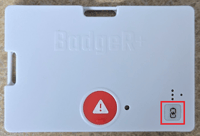
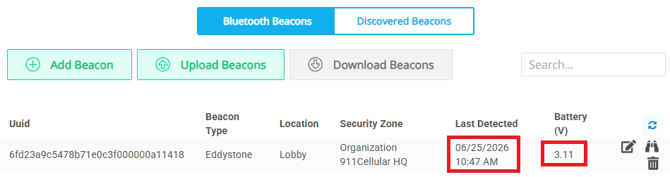
6. The beacon has been added successfully. Now, BadgeR+ activations within range of the beacon will display the location associated with the beacon.
"Discovered" method to add BLE beacons
This is a more automated way of adding BLE beacons to your account. Using a BadgeR+ to "discover" beacons, the UUID will automatically be applied, and you will only need to fill in the location information. In certain cases, "discovering" new beacons may not work, requiring you to use the manual entry method.
PLEASE NOTE: A BadgeR+ can only "detect" 5 beacons during one check-in. If you have more than 5 beacons within close proximity to one another, you may need to space them out for the best result.
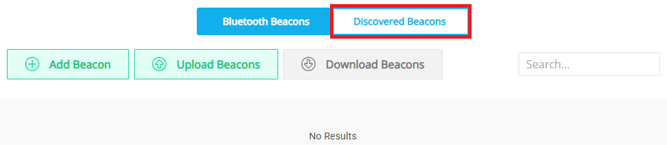
1. Navigate to Manage Devices > Manage Bluetooth Beacons and click "Discovered Beacons."
2. With an active BadgeR+, perform a "check-in" by pressing and releasing and releasing the white battery button once. After all LEDs have turned off, perform a second "check-in" using the same BadgeR+ device.
3. Refresh the Discovered Beacons page in your web browser. You should see the new beacon appear in the list with its UUID automatically applied. Click on the plus icon to the right-hand side to fill in additional information:
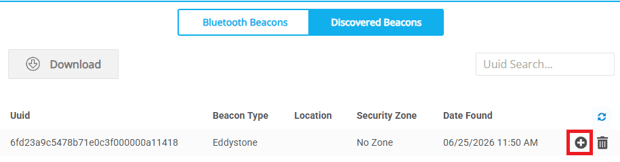
- Location: Enter a textual description where the beacon will be installed (examples: Room122, Cafeteria, Front Lobby, etc)
- Zone: use the selector to checkmark the zone where the beacon will be installed
- Add: click the green "Add" button to add the beacon to the portal
4. After clicking "Add," the beacon will appear in the active Bluetooth Beacons list. You may perform another BadgeR+ "check-in" to update the "Last Modified" and "Battery (v)" columns.
5. The beacon has been added successfully. Now, BadgeR+ activations within range of the beacon will display the location associated with the beacon.
BLE Beacon FAQs
How long will the batteries last?
-
The devices will last roughly 5 years before the AAA batteries are depleted. These devices are for emergency purposes, therefore we recommend changing the batteries more frequently than this. Battery voltages for each beacon can be monitored in the portal.
When should the batteries be replaced?
-
We recommend replacing the AAA batteries when the beacon reports between 2.6-2.69 volts.
How can I verify that my beacon is powered on?
-
The beacons have a button where the 911Cellular logo is printed. If the device is powered on, pressing the button one time should result in a single green flash. If no flash appears, press and hold the button for 3 seconds, until the device flashes green 3 times.
Do BLE beacons work for other panic button products?
-
Currently, BLE beacons are only compatible with our BadgeR+ wearable panic buttons.
What are the best practices for mounting BLE beacons?
-
Beacons should be installed in an open area whenever possible and should not be fully enclosed by metal. Avoid placing beacons behind metal panels, inside metal cabinets, or in other enclosed spaces that may block or weaken the signal. For best performance, mount beacons in a consistent location away from large obstructions, heavy electrical equipment, or other sources of interference. When deploying multiple beacons within a building, consider their placement carefully to provide adequate coverage while minimizing overlap that could cause inaccurate location readings.