![911C logo 2-4.png]](https://knowledge.911cellular.com/hs-fs/hubfs/911C%20logo%202-4.png?height=20&name=911C%20logo%202-4.png)
How BSSID Matching Works by Default
By default, the 911Cellular system treats the last character of a BSSID as a wildcard, grouping similar BSSIDs under the same access point (AP) record. This is called soft matching. For example,
- 90:d0:92:58:f2:74
- 90:d0:92:58:f2:78
- 90:d0:92:58:f2:7c
This works well in many deployments where those BSSIDs genuinely belong to the same physical access point (AP). However, in networks where each BSSID represents a distinct physical AP in a different location, soft matching causes the system to treat them as one — which can lead to incorrect location identification during an activated panic or an inaccurate security zone on a CPB machine.
For these situations, enabling Require BSSID Exact Match tells the system to match the full BSSID precisely, including the final character. This ensures each BSSID is recognized as a distinct access point, prevents unnecessary duplicate entries, and simplifies location management in networks where APs follow predictable BSSID patterns.
How to Enable BSSID Exact Matching
You must be a Portal Administrator to change this setting. If you do not see the toggle below, contact your account administrator.
- Open the WiFi Access Points page. Navigate to portal.publicsafetycloud.net and go to Manage Devices → WiFi Access Points.
- Locate the Exact Match toggle. Below the Add Access Point and Upload Access Points buttons, find the Require BSSID exact match toggle.
- Enable the toggle. Click it to turn it on — it will appear green. The setting can be toggled back off at any time.
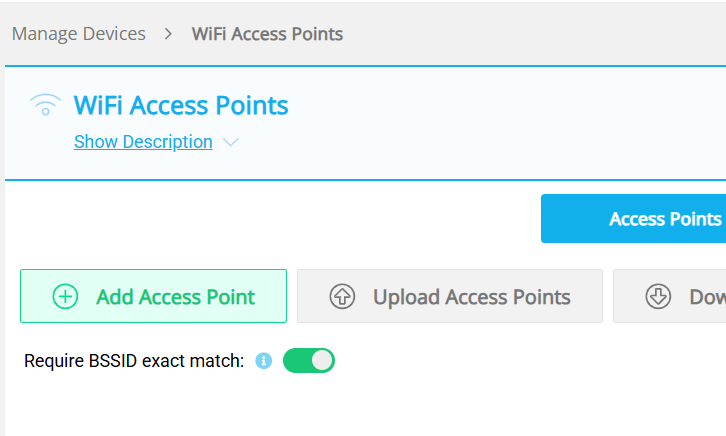
Once enabled, each BSSID will be treated as unique, including its final character.