![911C logo 2-4.png]](https://knowledge.911cellular.com/hs-fs/hubfs/911C%20logo%202-4.png?height=20&name=911C%20logo%202-4.png)
Critical Alerts — Mobile Safety App
The Critical Alerts feature ensures that emergency notifications are delivered immediately to users on the Mobile Safety App — even when their device is set to Do Not Disturb (DND) or silent mode.
This feature is intended strictly for time-sensitive emergency communications that require immediate attention. It should not be used for routine or non-urgent notifications.
How an Alert Becomes "Critical"
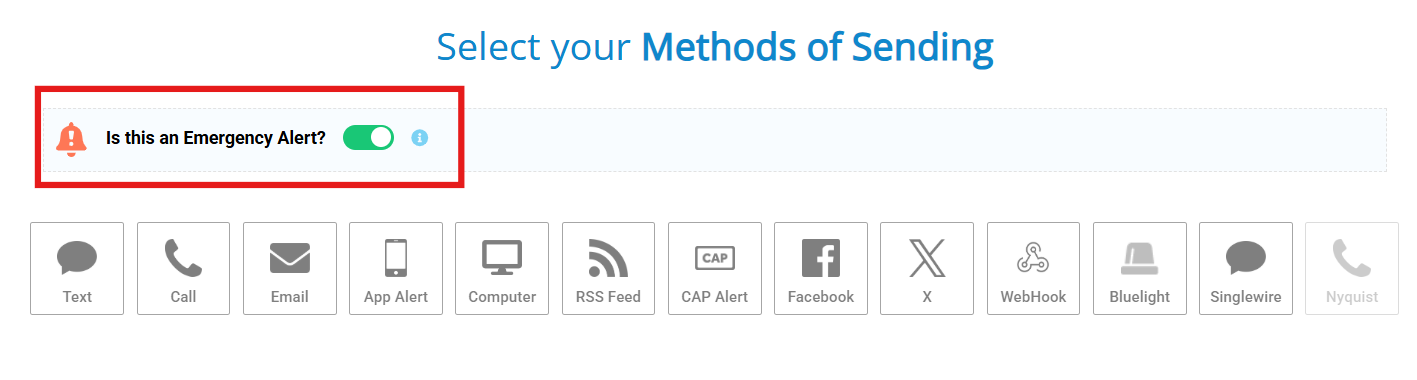
In the 911Cellular Portal, an alert is classified as critical when the sender enables:
"Is this an emergency alert?" at the time the alert is created and sent.
Only alerts with this setting enabled will bypass device restrictions. Standard notifications will continue to follow the device's normal sound and notification settings.
Behavior by Device Type
iPhone (iOS)
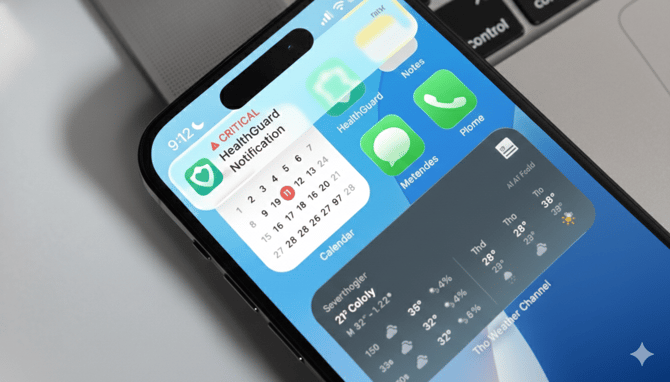
When a Critical Alert is received, the notification will:
- ✅ Bypass Do Not Disturb
- ✅ Bypass all Focus modes
- ✅ Play a sound even if the phone is on silent
- ✅ Surface immediately on the lock screen
This ensures users cannot miss an emergency communication, regardless of their device settings.
Android
When a Critical Alert is received, the notification will:
- ✅ Bypass Do Not Disturb
- ❌ Does not override silent mode
ⓘ Note: Android does not allow third-party apps to force sound playback when a device is set to silent. The notification will still be delivered and surface on screen — but no sound will play if the device is silenced.
Setup: How to Enable Critical Alerts
Critical Alerts must be enabled on each user's device. Share these steps with your end users.
iPhone (iOS)
- Open the Settings app
- Tap Apps
- Select your Mobile Safety App
- Tap Notifications
- Toggle Critical Alerts to ON
Android
- Open the Settings app
- Tap Apps
- Tap Special App Access
- Select Do Not Disturb Access
- Select your Mobile Safety App and enable access
- Toggle “Allow Do Not Disturb” ON
Important Notes
- Critical Alerts must be enabled by the end user on their device — this cannot be configured remotely by an administrator
- On iOS, if a user has not granted Critical Alert permissions, they will be prompted to do so when the first critical notification is received
- This feature applies to the Mobile Safety App only and does not affect Computer Panic Button or BadgeR+ notifications
- Overuse of the Critical Alert setting for non-emergency communications may lead users to disable the permission — reserve it for true emergencies