![911C logo 2-4.png]](https://knowledge.911cellular.com/hs-fs/hubfs/911C%20logo%202-4.png?height=20&name=911C%20logo%202-4.png)
Step Away is a personal safety and de-escalation feature that helps users discreetly exit potentially dangerous or uncomfortable situations. When activated, the feature triggers a realistic incoming phone call to the user's device — providing a believable, natural-looking excuse to step away without drawing attention.
How It Works
- The user taps the Step Away tile in the mobile app.
- A call is automatically placed from a unique phone number to the phone number saved on the user's profile.
- Once the user answers the call:
- A pre-recorded message plays, simulating a real incoming call (no information is actually collected).
- Hold music plays for approximately 5 minutes.
- At the end of the hold music, the user is prompted: "If you need more time, press 1."
- User options at the prompt:
- Press 1 → The call restarts and hold music plays again.
- Press any other number or no input → The call ends automatically.
- The user can extend the call indefinitely by pressing 1 each time the prompt plays.
Platform Behavior
iOS (iPhone)
- When Step Away is tapped, the app redirects the user to iOS Settings — this helps disguise the fact that the call was intentionally triggered.
- The incoming call then arrives on the device.
Android
- When Step Away is tapped, the mobile app automatically closes.
- The incoming call then arrives on the device.
Setup Instructions
Step 1: Go to the App Configuration page: 👉 https://portal.publicsafetycloud.net/manage-settings/app-configuration
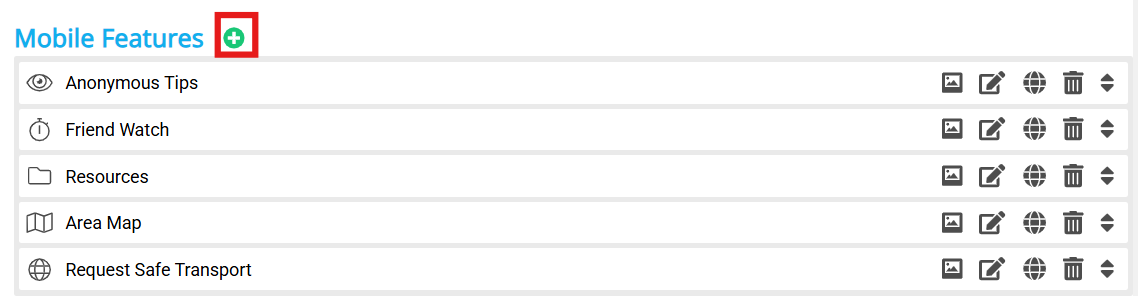
Step 2: Click the "+" (Add) icon in the Mobile Features section.
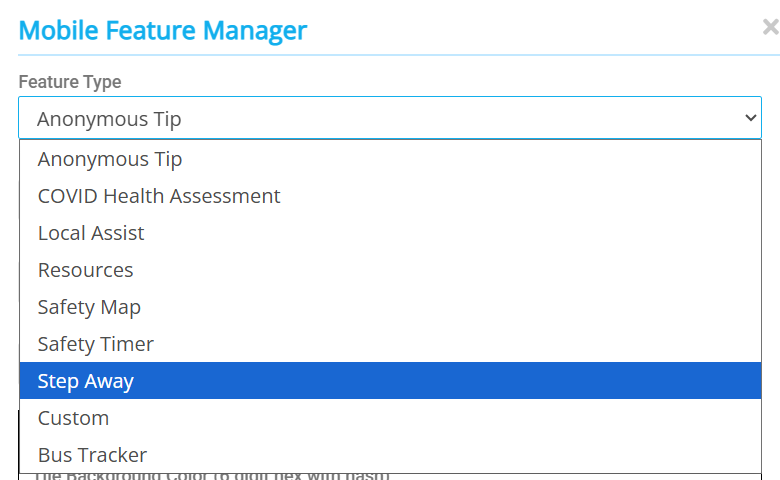
Step 3: In the Mobile Feature Manager, open the Feature Type dropdown and select Step Away.
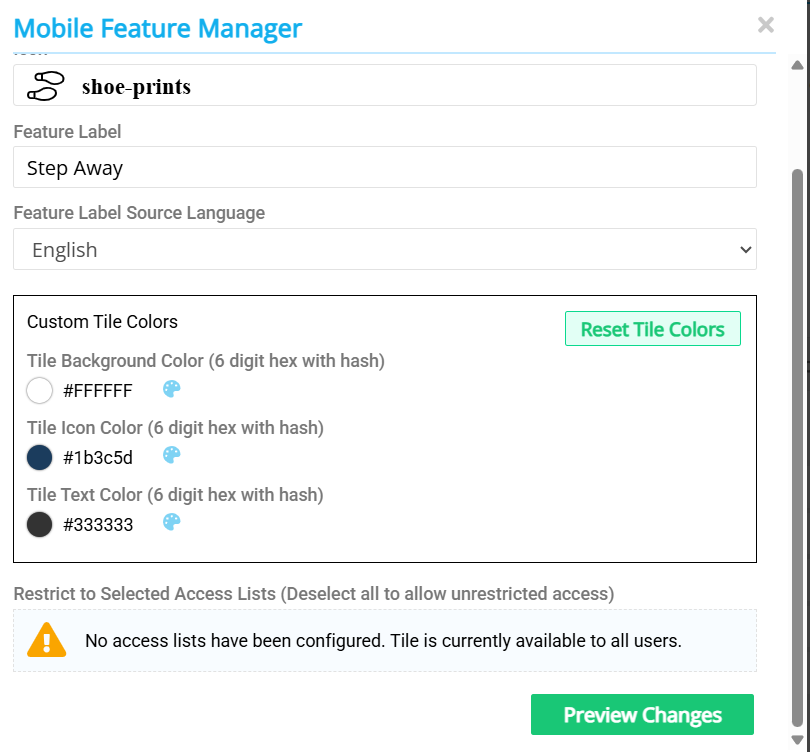
Step 4: Configure the tile settings:
- Feature Label: Step Away
- Feature Label Source Language: English
- Custom Tile Colors (optional — enter 6-digit hex values):
- Tile Background Color
- Tile Icon Color
- Tile Text Color
- Click Preview Changes to review your configuration before saving.
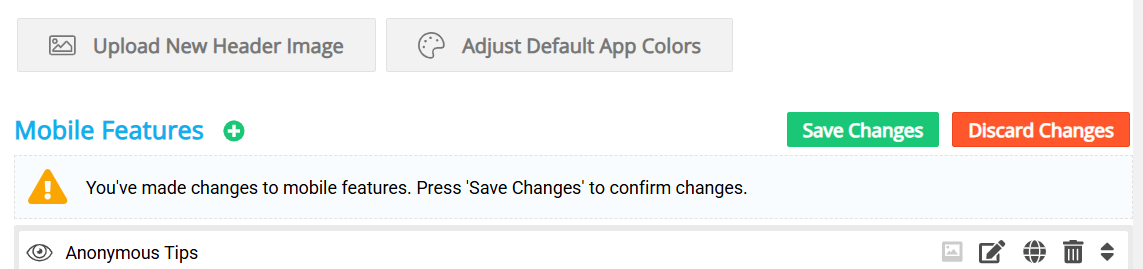
Step 5: Click Save Changes to publish the feature to your app.
Troubleshooting
Call not received?
- Verify the phone number on the user's profile is correct.
- Confirm the user does not have a shared account (Step Away requires an individual profile).
- Ensure the device has active cellular service.
Call ends unexpectedly?
- The user must press 1 when prompted in order to extend the call. If no input is received, the call will end automatically.
Step Away tile not visible in the app?
- Confirm that Step Away has been enabled and saved in the Mobile App Configuration: 👉 https://portal.publicsafetycloud.net/manage-settings/app-configuration