![911C logo 2-4.png]](https://knowledge.911cellular.com/hs-fs/hubfs/911C%20logo%202-4.png?height=20&name=911C%20logo%202-4.png)
Test Mode provides a controlled environment for validating panic activation behavior without triggering operational emergency workflows.
Unlike Drill Mode, Test Mode suppresses all real world emergency actions and isolates panic activity into a dedicated testing interface for safe validation and verification.
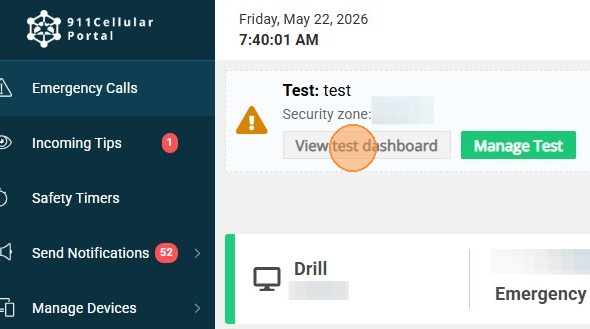
Each test session has it’s own dedicated panic dashboard. It can be accessed by all portal roles via the banner on the Emergency dashboard
Panic Handling
When panic activations occur during Test Mode:
- Panic events are marked with a Test badge on the dedicated test dashboard and analytics
- System generated notes identify the event as part of an official test
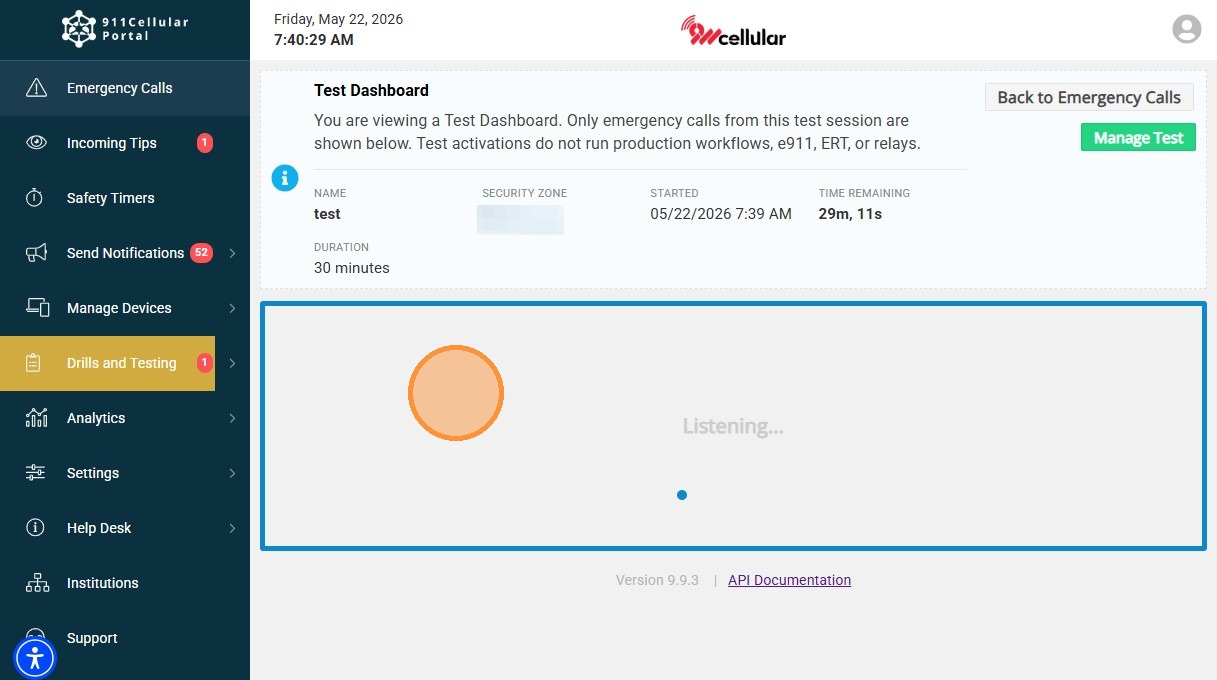
- Activations appear only inside a dedicated Test Dashboard and not on the Emergency Dashboard
During Test Mode, all operational emergency responses are disabled.
The following actions do not occur:
- No workflow execution
- No E911 calls
- No ERT notifications
- No relay activation
How to Start and End a Test
1. Navigate to https://portal.publicsafetycloud.net
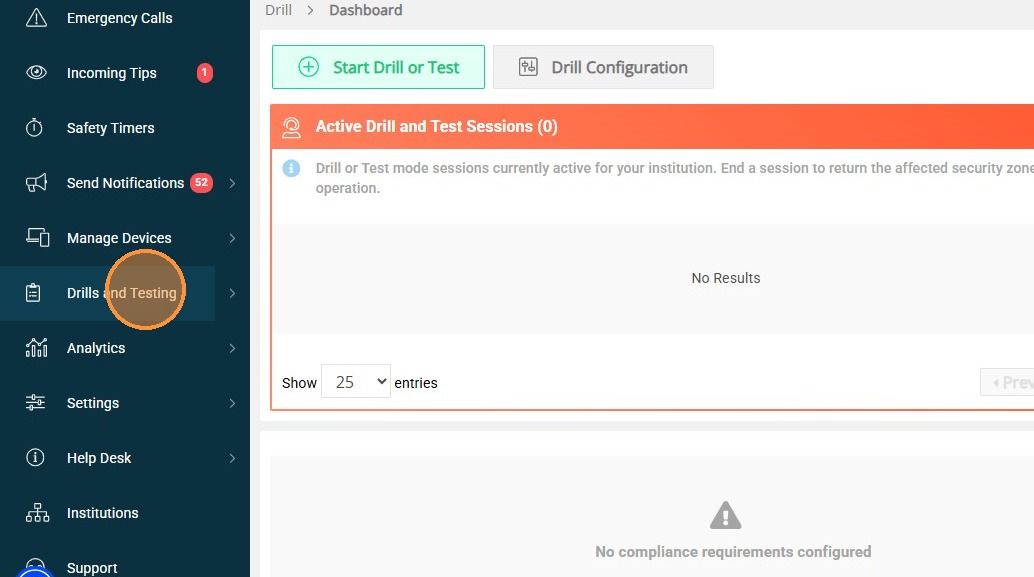
2. Click "Drills and Testing"
Test Configuration
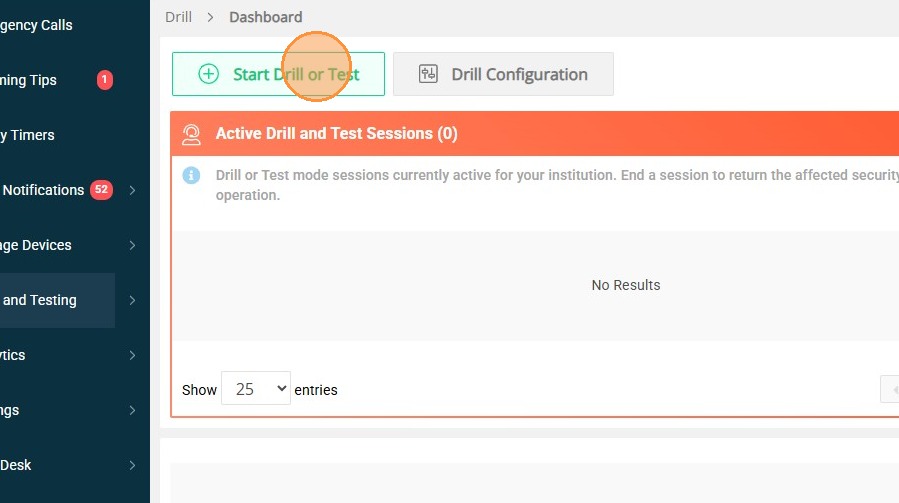
3. Click "Start Drill or Test"
4. Select the 'Test' mode option
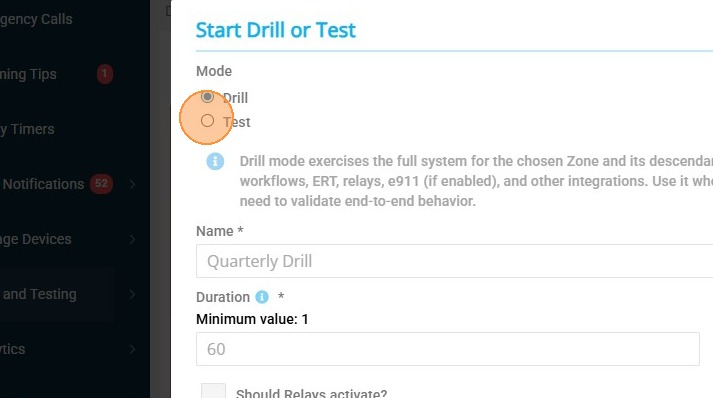
5. Enter a test name into the Name field
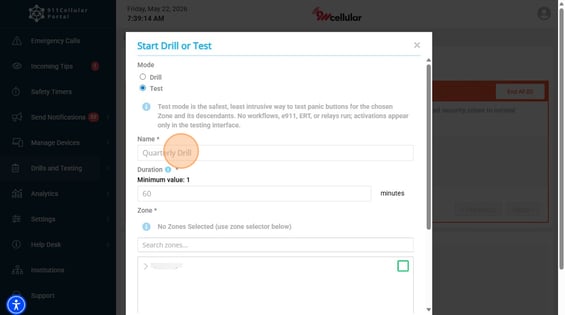
6. Enter desired duration into the Duration field
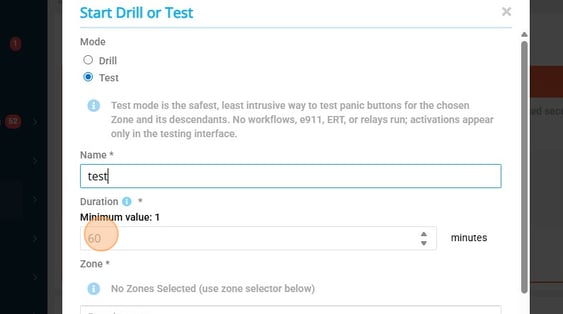
7. Select the Security Zone that encompasses the area you wish to test
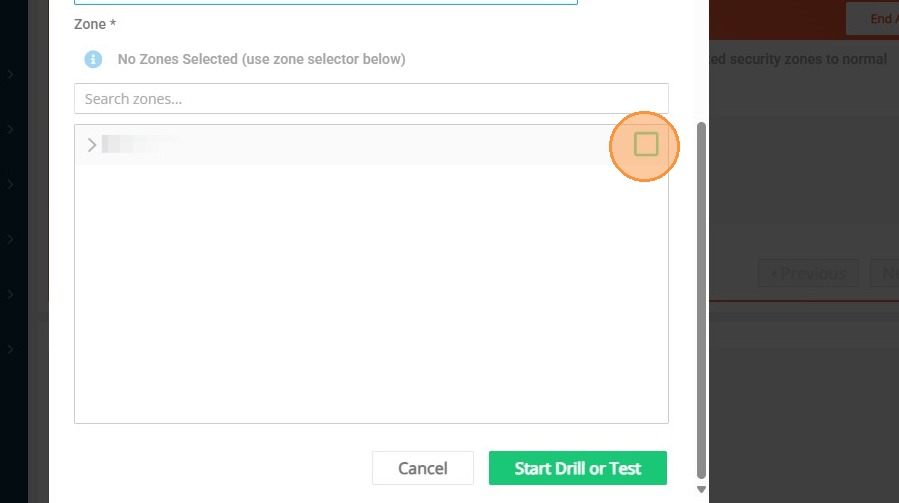
8. Click "Start Drill or Test"
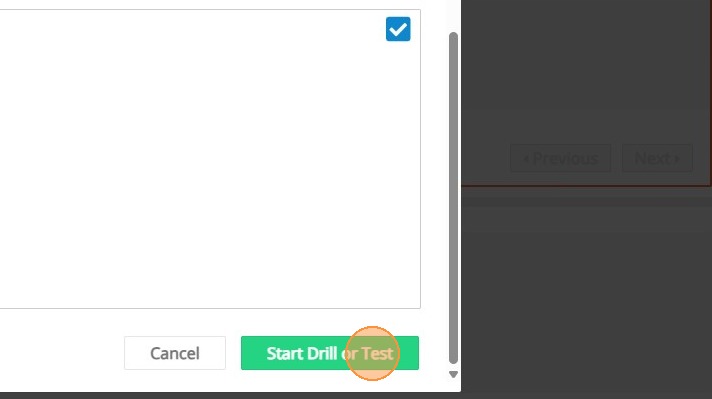
Monitoring and Management
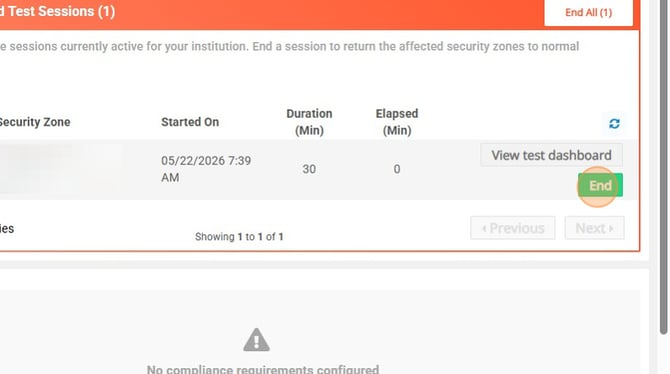
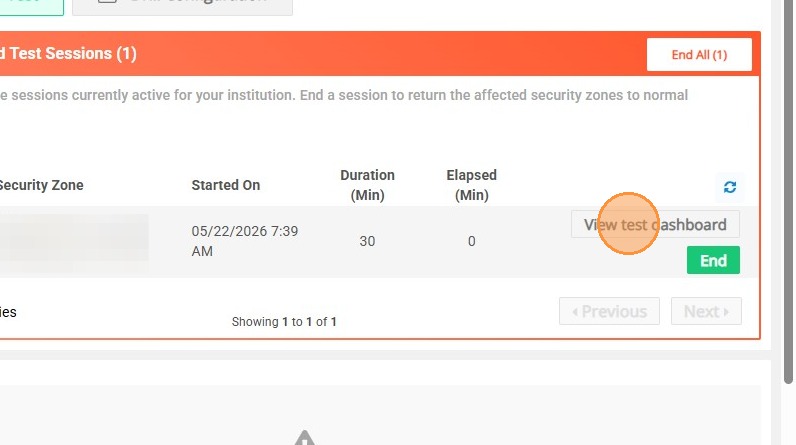
9. Click "View test dashboard" to see and interact with the test dashboard
10. Dispatchers can access the "view test dashboard" in Emergency Calls
11. During an active test mode session, panic activations will appear within the test dashboard
Ending the Test Session
12. Click "End" to end Test Session