![911C logo 2-4.png]](https://knowledge.911cellular.com/hs-fs/hubfs/911C%20logo%202-4.png?height=20&name=911C%20logo%202-4.png)
Pre-Configuration
To properly configure a BadgeR+, it must connect to your organization’s Wi-Fi network and confirm that your environment meets the following network standards:
-
Wi-Fi Frequency: The BadgeR+ communicates via 2.4GHz Wi-Fi networks.
-
Authentication: 802.1x authentication using service accounts with permanent credentials is recommended.
-
Off-Premises Warning: The BadgeR+ will not function properly off-premises or out of reach of the specific Wi-Fi network it was configured to use.
-
Range: Connection may be lost in areas like parking structures where Wi-Fi reach is limited. Additionally, a BadgeR+ will not function properly when connected to any Wi-Fi network other than the Wi-Fi network it was configured to connect to.
How to Identify an Unconfigured Device
Before you begin, press the Battery Button once. If the device is unconfigured, it will perform the following sequence:
-
Vibration: The device will vibrate once.
-
Status Light: The Status Indicator Light will cycle through RGB colors for 5 seconds (Red, Green, Blue, White).
-
Battery Lights: Simultaneously, the Battery Indicator Lights will light up one at a time (bottom, middle, top) before displaying the current charge status.
BadgeR+ Pairing & Configuration Workflow
The BadgeR+ device communicates through existing Wi-Fi networks. To properly configure a BadgeR+ device, connect it to your organization’s Wi-Fi network.
You can save time by using our Bulk Pairing feature to skip re-entering Wi-Fi credentials for every button. View the Bulk Pairing Tutorial
-
Navigate to the 911Cellular Portal: On the left-hand navigation bar, click Manage Devices, then select Wireless Panic Buttons.
-
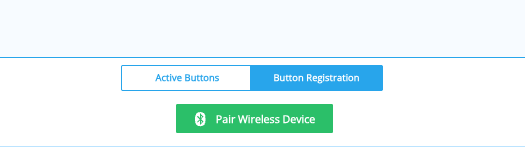
Click the ‘Button Registration’ sub-tab to see the green ‘Pair Wireless Device’ button.
-
Initiate Pairing Mode: Press the Battery Button on the BadgeR+ for 6 seconds until the Status Indicator Light blinks blue. (Pairing Mode lasts 20 seconds). While in Pairing Mode, the BadgeR+ device will NOT alert anyone if the Alert Button is pressed.
-
Initiate Browser Connection: After Pairing Mode is initiated, return to your browser and click the green ‘Pair Wireless Device’ button.
-
Select Device: A popup window will appear that scans then displays device names attempting to pair. Select ‘BadgeR+’ and click ‘Pair’.
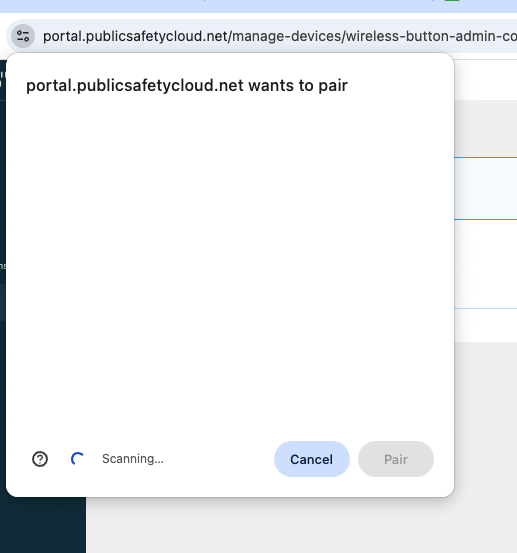
If your BadgeR+ is already paired, you’ll see the text ‘Paired’ show up next to the BadgeR+ name.
6. Click ‘Edit Device Details’ and enter the required information into the popup window.
- User Email: Low battery alerts will be sent to this address.
- Device Name: This is the name displayed when the device is activated and shown to alert recipients.
- Assignment Logic: If assigning one device per person, enter that individual's specific info. If assigning to a group, enter information that best represents that group.
- Support: For help filling out these details, email support@911cellular.com.
7. Finalize and Save When you’re done filling out device details, click the green ‘Link Device’ button. Your next action depends on whether you are pairing a single badge or multiple badges:
-
-
If Pairing ONE Badge: Click on the ‘Active Buttons’ sub-tab to confirm the device appears in your list. You are now ready for Verification.
-
If Pairing MANY Badges (Bulk): Do NOT click the ‘Active Buttons’ tab. Instead, click the red ‘Disconnect’ button in the pairing window to clear the current session. This allows the portal to keep your Wi-Fi credentials saved for the next device. View the Bulk Pairing Tutorial
Return to Step 3 to begin pairing your next badge.
-
Configuration & Verification Complete Once your BadgeR+ devices are successfully linked in the portal and you have confirmed the 4 green blinks on each unit, your technical setup is complete.
⚠️Network Stability & Maintenance: Wi-Fi Credentials
-
Preferred Method: It is recommended to use 802.1x authentication via service accounts with credentials that do not change.
-
Password Changes: Changing a service account or Wi-Fi password will disable all connected BadgeR+ devices until they are manually reconfigured.
-
Safe Updates: If you must change network passwords, only do so when all devices are gathered and accounted for.
-
Network Capacity: Ensure your network has enough IP addresses to avoid "Access Point exhaustion" when adding new badges.
Next Step: Deployment & Hand-Off
Now that the devices are "Live," proceed to our BadgeR+ Deployment & Hand-off Guide to learn how to:
-
Configure specific alert trigger methods (Single vs. Double Click).
-
Use the Distribution Checklist to ensure end users are properly equipped.
-
Train staff on daily status checks and charging protocols.