![911C logo 2-4.png]](https://knowledge.911cellular.com/hs-fs/hubfs/911C%20logo%202-4.png?height=20&name=911C%20logo%202-4.png)
Configuring How End Users Trigger Alerts
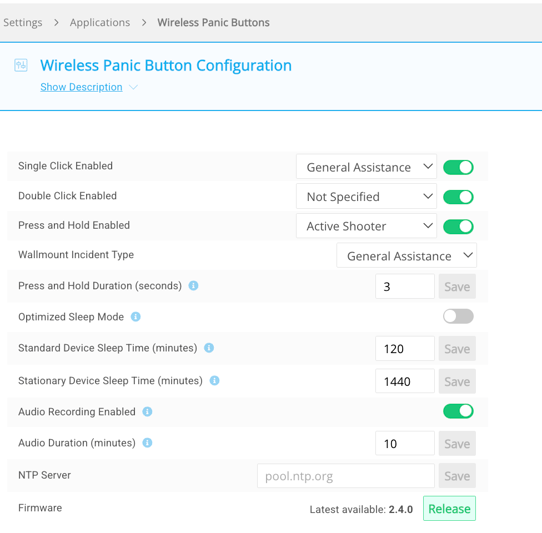
Before handing a device to a user, you must define how they will physically activate a panic alert. You can choose different methods to prevent accidental triggers.
-
Activation Options: You can configure devices for Single click, Double click, or Press and hold activation.
-
Where to Change Settings: Visit the BadgeR+ Configuration Settings in the 911Cellular Portal to set the global rules for your organization.
Distribution (The 1-2-3 Rule) & End User Safety Training
Follow this checklist for every device before it leaves your custody.
-
Check the Status... Again: Perform one final battery button press to ensure you see the 4 green blinks. This confirms the device is successfully communicating with the system.
-
Include the Charging Cable: Ensure every BadgeR+ is distributed with its included USB-C charging cable.
-
Safety Briefing: Instruct the user on these best practices:
-
-
Start-of-Shift Check: If the badge has been sitting in a locker or charging for days, they must verify the 4 green blinks before their shift starts.
-
"Not Protected" Signals: Any device showing a single vibration and an "RGB cycle" (Red-Green-Blue-White) is unconfigured and will not send an alert.
-
Reporting Protocol: If the badge doesn't blink green at the start of a shift, they must contact the Admin immediately.
-
Wi-Fi Footprint: Remind them the device will not function in the parking garage, during their commute, or off-site.
-
⚠️ Improperly Configured Devices
If a BadgeR+ device is improperly configured, the Status Indicator Light will NOT blink green 4 (four) times after the Battery Button is pressed.
-
Visual Cues: You may see a series of other colors and blinking lengths instead.
-
Action: If this occurs, do not distribute the device. Refer back to the Pairing & Configuration Guide to re-sync the unit.
Operational Maintenance (The Admin’s Role)
While staff verify their badges shift-by-shift, the Admin monitors the fleet's health in the background.
-
Battery Monitoring: Alerts are sent daily for any device below 3.50V.
-
Check-in Audits: If a device hasn't communicated with the server in 24 hours (stationary) or 72 hours (non-stationary), an email notification is generated.
-
Firmware Lifecycle: Visit the configuration page periodically; if the green "Release" button is active, a newer firmware version (like 2.4.0) is available to improve device performance.
Transitioning to Active Monitoring
:Successful deployment is measured by the continuous readiness of the fleet. Your role now shifts to oversight:
-
Proactive Maintenance: Use the 'Active Buttons' tab to act on low-battery (below 3.50V) or "Lack-of-Checkin" alerts before they impact an end user.
-
Standardized Verification: By enforcing the Start-of-Shift Check, you ensure that every individual in your community—regardless of their role or schedule—takes personal ownership of their safety tools.
Deployment Success
By following these guidelines, you have successfully moved from hardware setup to a live safety network!